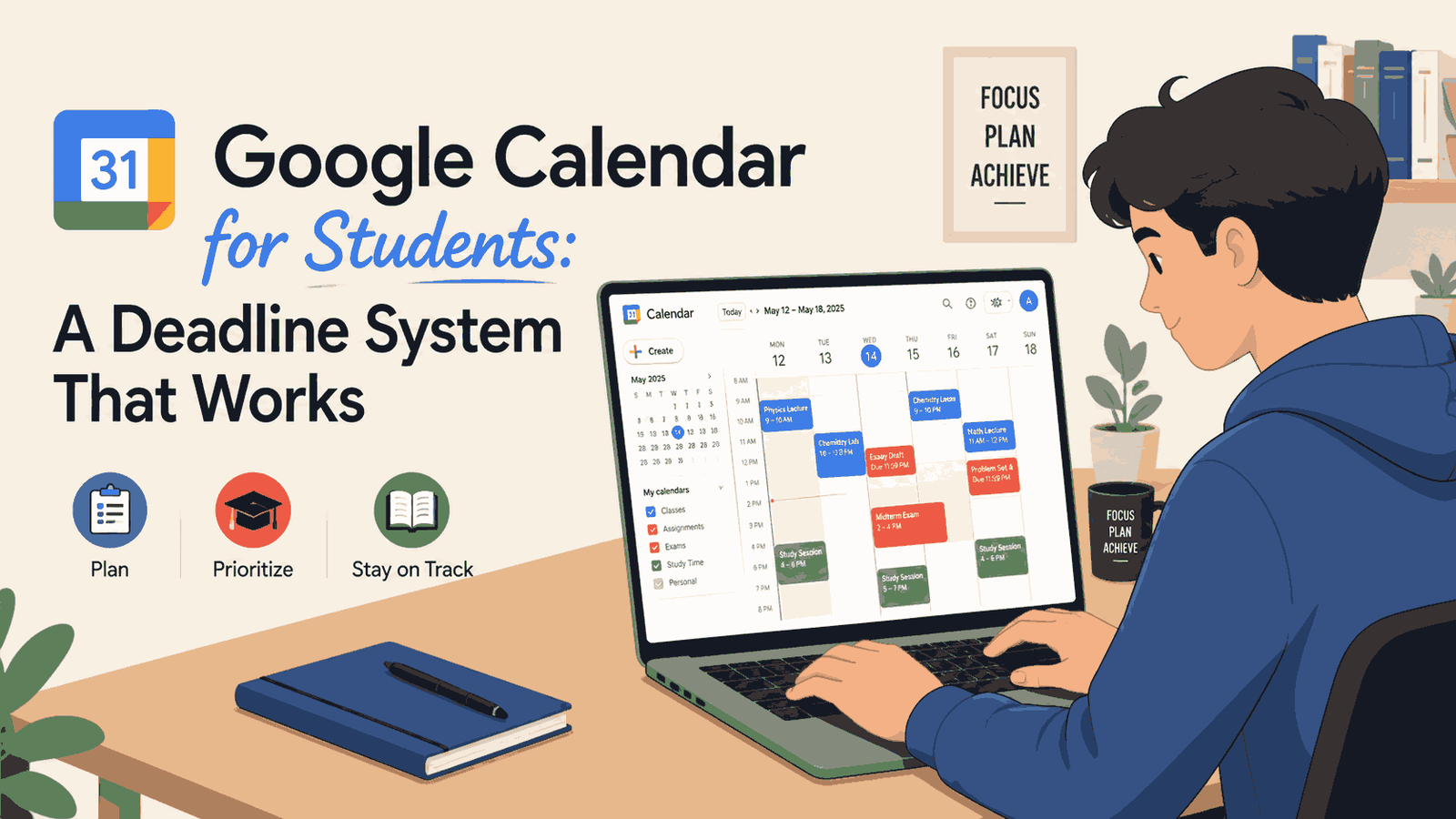
Google Calendar for students is a simple way to manage university deadlines, exams, lectures, study blocks, and reminders in one organized system.
Quick Answer
A practical Google Calendar for students system to manage university deadlines, exams, lectures, study blocks, and reminders without over complicating your week.
When it comes to Google Calendar for students, it is one of the most practical free tools for managing university deadlines when you use it with a deliberate system rather than just dumping events in randomly. The core idea is to create separate calendars for assignments, exams, lectures, and study blocks, then color-code them so you can see your week at a glance. Set reminders at least 48 hours before each deadline, not just on the day itself. That one habit alone can stop a lot of last-minute panic.
Who This Guide Is For
This guide is for university students who already know Google Calendar exists but have never set it up in a way that actually helps them. Maybe you add an exam date occasionally, but your calendar is mostly empty. Maybe you have tried to stay organized before and it fell apart after two weeks.
You do not need to be technical to follow this. You do not need to wake up at 5am or build a complex productivity system. You just need about 30 to 45 minutes to set things up properly, and a system you will actually stick to.
If you are a complete beginner to digital planning tools, this guide will walk you through everything step by step. If you are already fairly organized, you might find the STACK framework section most useful.
Introduction
I started my master’s program thinking I could keep track of everything in my head. I had done it before in undergrad, more or less. But graduate school is different. You have overlapping submission windows, reading lists that never end, group project meetings that get rescheduled constantly, and sometimes a part-time job or freelance work on top of all that.
The first semester, I missed a soft deadline for a seminar paper draft. It was not a graded deadline, so nothing terrible happened. But it threw off the rest of my writing schedule. I knew I needed to stop managing everything mentally and actually write things down somewhere consistent.
I tried a few tools. I already used Google Calendar for basic things, so I decided to actually learn how to use Google Calendar for university properly rather than switching to something new. What I found is that it is genuinely good for students, but only when you treat it as a structured system rather than a loose event list.
This article shares what I put together. It is not perfect. But it works well enough that I have not missed a real deadline since I started using it.
Why Google Calendar Works Well for Students (When Used Properly)
It Is Already Free and Linked to Your University Email
Many universities provide students with Google Workspace accounts or use systems that integrate easily with it. This means you likely already have access without signing up for anything new. If your university email is connected, invites from professors or group members will sync automatically without extra setup.
It Works Across All Your Devices
You can check your calendar on your phone, laptop, or tablet without syncing anything manually. If you add a deadline on your laptop at night, it shows up on your phone the next morning. For students who move between locations constantly, this consistency matters a lot.
You Can Layer Multiple Calendars in One View
This is the feature most students completely ignore. Google Calendar lets you create separate calendars and view them all at once with different colors. Instead of one messy list of events, you can have a clear visual breakdown of your assignments, exams, lectures, personal commitments, and study blocks, all in one place without them getting confused with each other.
The STACK Framework: A Simple Google Calendar System for Students
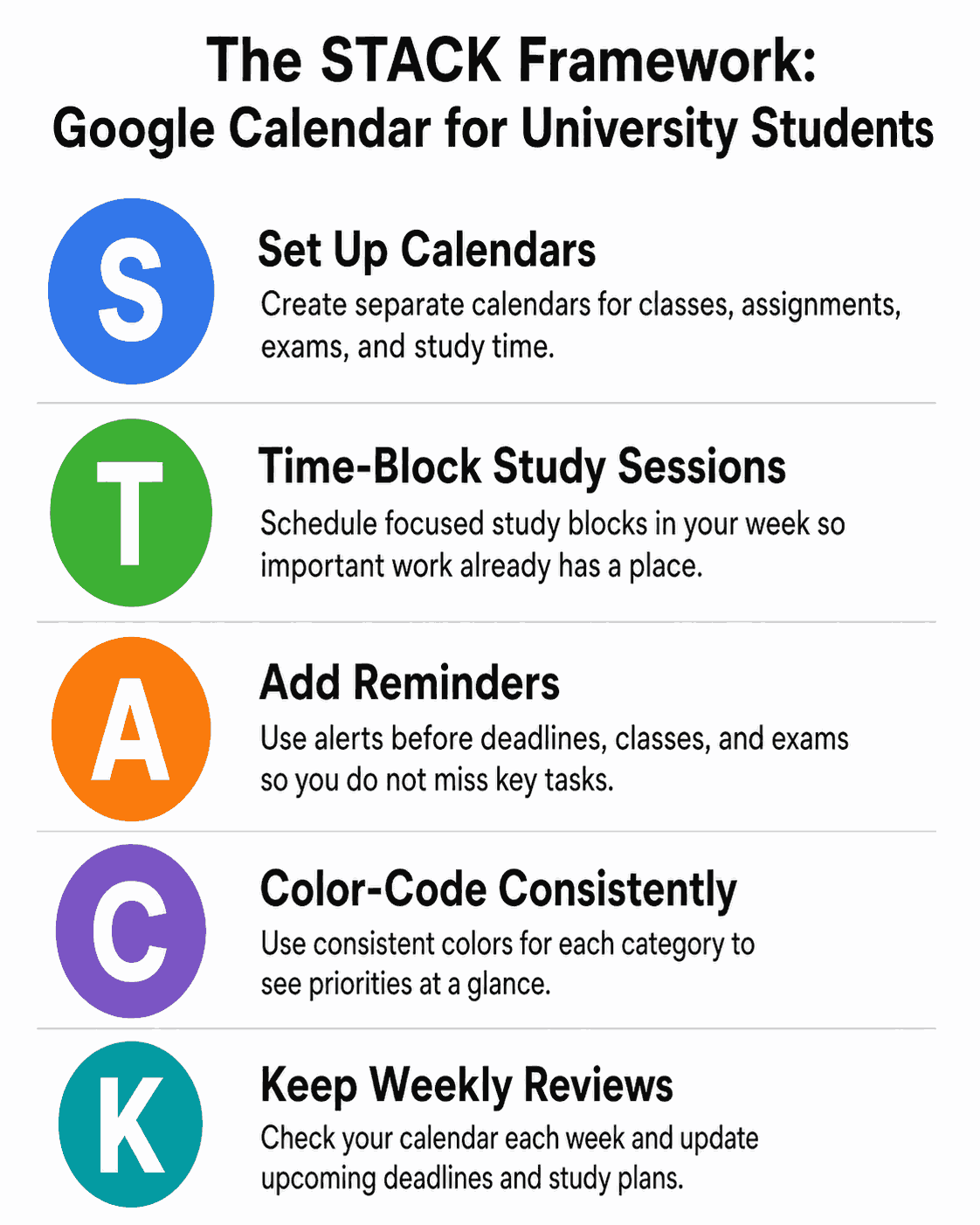
I put a name to this system because it helps me remember the steps to creating a proper student deadline tracker. STACK stands for Set up, Time-block, Add reminders, Color-code, and Keep reviewing. Each part builds on the one before it.
S: Set Up Separate Calendars by Category
Do not put everything into one default calendar. Create at least four separate calendars inside Google Calendar. A suggested breakdown is: one for deadlines and assignments, one for exams and tests, one for lectures and scheduled classes, and one for study blocks and personal focus time. You can add a fifth for group project meetings or social commitments if your schedule is complex.
To create a new calendar, open Google Calendar, look at the left sidebar, find “Other calendars,” click the plus sign, and select “Create new calendar.” Give it a short, clear name.
T: Time-Block Study Sessions, Not Just Deadlines
This is the most important shift in thinking. A deadline on your calendar tells you when something is due. A study block tells you when you are going to work on it. Without study blocks, your calendar is just a list of pressures with no plan attached.
When you add a deadline, also add at least two or three study blocks in the days before it. These blocks do not have to be long. Even 90-minute focused sessions on specific tasks are more useful than vague plans to “study more.”
A: Add Reminders Before Every Deadline
Google Calendar lets you add email or notification reminders to any event. For assignments and exams, I recommend setting three reminders: one a week before, one 48 hours before, and one on the morning of the deadline. This gives you time to act, not just time to panic.
To add a reminder, click on any event you have created, then click the pencil icon to edit, and look for the “Add notification” option. You can add multiple notifications to a single event.
C: Color-Code Everything Consistently
Pick a color for each calendar and stick to it every week. For example, red for exams, blue for assignments, green for study blocks, grey for lectures. When you look at a week view, you will immediately understand your workload without reading every event title.
The key word here is “consistently.” Change the system and it stops working. Pick colors once and commit to them.
K: Keep a Weekly Review Habit
Every Sunday (or whatever day works for you), spend 10 to 15 minutes looking at the coming week. Check what deadlines are approaching, confirm your study blocks are still realistic, and move anything that has shifted. This weekly check is what keeps the system alive. Without it, the calendar goes stale and you stop trusting it.
Step-by-Step Setup Guide for Beginners
Step 1. Create Your Calendar Categories
Open Google Calendar in your browser. In the left sidebar, scroll to “Other calendars” and click the plus sign. Create four calendars with the names: Assignments, Exams, Lectures, and Study Blocks. Assign a unique color to each one by clicking the three dots next to the calendar name after you create it.
Step 2. Add Your Semester Deadlines First
Get your course syllabi or assignment list for every module or course you are taking this semester. Add every graded deadline to your Assignments calendar right now, not later. Do the same for every exam date in your Exams calendar. Doing this in one sitting, even if it takes 30 minutes, means you will not forget any submission when things get busy.
Step 3. Set Up Recurring Events for Lectures and Work
For classes that happen on the same day and time every week, use Google Calendar’s recurring event feature. Click “More options” when creating an event, then look for “Does not repeat” and change it to the schedule that matches your class. This saves you from re-entering the same event every week.
If you work part-time or have a regular commitment, add those recurring blocks too. Seeing your actual available time is essential for realistic planning.
Step 4. Block Study Time Around Your Deadlines
Look at the two weeks before each major assignment or exam. Add study block events to your Study Blocks calendar in that window to build a reliable Google Calendar study schedule. Be specific in the event title. Instead of “Study,” write “Read Chapter 4-6 for Research Methods” or “Draft intro paragraph for essay.” Specific blocks are easier to actually follow through on.
Step 5. Use the Reminder and Notification Settings
Go back to each deadline event in your Assignments and Exams calendars and add notifications. Set at least two reminders per deadline, one several days before and one on the morning it is due. You can set reminders to appear as phone notifications or email alerts depending on what you are more likely to see.
Hypothetical Example: How a Student Might Use This System
Let’s look at how this STACK system actually plays out during a busy semester.
Imagine a second-year undergraduate student, let’s call her Julia, who is studying communications at a mid-size university. She has five courses this semester, each with multiple assignments, plus two exams in the same week in November.
At the start of term, Julia spends 40 minutes setting up her Google Calendar using the STACK framework. She creates four calendars, adds all her deadlines from her syllabi, and sets up her recurring lecture times. She then blocks two to three study sessions per week for each upcoming assignment, starting the week before the deadline rather than the night before.
When the busy November week arrives, Julia already has her exam revision blocked in from two weeks earlier. She gets a reminder notification on the Friday before her exam week, giving her the weekend to do a final review rather than scrambling.
In this hypothetical scenario, the system does not magically make the work easier. But it does mean Julia is never surprised by a deadline and never starts studying with too little time because she forgot a conflict. The calendar does not do the work. It just makes the work visible ahead of time.
Google Calendar vs. Other Student Planning Tools
| Tool | Cost | Best For | Learning Curve | Works Offline |
| Google Calendar | Free | Scheduling and time blocks | Low | Limited |
| Notion | Free / Paid plans | Notes, databases, project tracking | Medium to High | Partial |
| Todoist | Free / Paid plans | Task lists and due dates | Low | Yes |
| Physical Planner | Cost of purchase | Simple daily planning | None | Yes |
| Trello | Free / Paid plans | Visual project boards | Low | Limited |
When Google Calendar is the right choice: You want a visual time-based planner, you already use Google tools, and you want something that works across all your devices without extra setup.
When you might combine it with something else: Many students use Google Calendar for scheduling and a tool like Todoist or Notion for detailed task lists. These are complementary, not competing, tools. If you want to explore automation between tools, I have written about that in How I Automated My Daily Tasks as a Student which covers some beginner-friendly automation options.
The STACK Framework Checklist
Use this checklist when setting up your Google Calendar system at the start of any new semester.
Setup
- Created separate calendars for Assignments, Exams, Lectures, and Study Blocks
- Assigned a consistent color to each calendar
- Added all semester deadlines from every course syllabus
Time Blocking
- Added recurring events for all regular classes and work commitments
- Blocked at least two to three study sessions before each major deadline
- Written specific task names inside study block events, not just “study”
Reminders
- Added at least two notifications to every graded deadline event
- Set one reminder several days before and one the morning of each deadline
- Confirmed notification delivery method (phone alert or email)
Color Coding
- Checked that each calendar has a unique color
- Verified that the week view shows clearly separated event types
Weekly Review
- Scheduled a recurring 15-minute weekly review event on Sundays (or preferred day)
- Completed at least one weekly review since setting up the system
Common Mistakes Students Make with Google Calendar
Mistake 1: Only adding the deadline date, not planning backwards
The most common problem I see (and did myself at first) is adding a deadline on the due date and nothing else. The deadline is just an alarm. Without study blocks scheduled before it, you have a warning with no plan. Always add work sessions when you add a deadline.
Mistake 2: Using only one calendar for everything
When you dump lectures, assignments, birthdays, and gym sessions all into one calendar with no separation, the view becomes noise. You stop trusting it because you can not read it quickly. Separate calendars take five minutes to create and make everything easier to read.
Mistake 3: Setting reminders for the day of the deadline
A reminder on the morning something is due is too late in most cases. If you have not started, or if something goes wrong, you have no buffer. Set reminders at least 48 hours in advance. For major assignments or exams, a week in advance works even better.
Mistake 4: Building the system once and never reviewing it
Calendars go out of date. Deadlines get moved. New assignments appear. If you are not doing a weekly review, your calendar becomes unreliable within a month. The review habit is what keeps the system working. It does not need to take long. Fifteen minutes on a Sunday is enough.
Mistake 5: Making the system too complicated to maintain
I have seen students create colour-coded systems with eight different calendars, custom emojis in every event title, and hourly planning across the whole week. That level of detail is hard to maintain when you are tired, stressed, or just busy. Keep your system simple enough that you will actually update it during a difficult week, not just when you are feeling organized.
Beginner Verdict
Google Calendar for students is genuinely useful for university students, and the barrier to starting is almost zero since you probably already have access through your university account. The problem is not the tool. The problem is that most students use it without a system, which means it ends up being less helpful than a basic paper planner.
The STACK framework I described here is not the only way to use it. But it is a starting point that has worked for me as a master’s student managing multiple deadlines and commitments at the same time.
My honest recommendation: spend 30 to 45 minutes this weekend setting it up properly for the rest of your current semester. Add all your deadlines, block your study sessions, set your reminders, and do one weekly review to start the habit. If you do those four things consistently, you will be ahead of most students who say they “use Google Calendar” but never really engage with it.
This is not a perfect system and you will probably adjust it over time. That is fine. Starting is more important than starting perfectly. Have you tried time-blocking your studies before? Let me know what planning tools you are currently using in the comments below!
/
FAQ
Can I use Google Calendar for university if I do not have a Google university account?
Yes. Google Calendar for students is free with any personal Google account. You can sign up at calendar.google.com with a personal Gmail address if your university does not use Google Workspace. The features are essentially the same.
How many calendars should I create inside Google Calendar as a student?
Four is a reasonable starting point: one for assignments, one for exams, one for lectures, and one for study blocks. You can add a fifth for group projects or personal events if needed. More than five or six calendars tends to make the system harder to maintain.
Can I share my Google Calendar with group project members?
Yes. You can share a specific calendar with other people using their email addresses. This is useful for group project timelines. To do this, go to the settings for the calendar you want to share, find the “Share with specific people” section, and add your group members’ emails. They will need a Google account to view or edit the shared calendar.
What is the difference between a Google Calendar reminder and a Google Task?
Reminders in Google Calendar appear as notifications attached to an event. Google Tasks are a separate to-do list that can also appear inside Calendar view. For deadline tracking, event notifications are usually sufficient. Google Tasks can be useful if you want a checklist alongside your calendar, but they are optional and not necessary to get started.
Is Google Calendar better than a paper planner for students?
This depends on how you think and work. Google Calendar has clear advantages for recurring events, multi-device access, and automatic reminders. A paper planner has no battery issues, requires no app, and some people retain information better when they write by hand. Many students find a combination works well: digital calendar for scheduling and reminders, paper notes for daily task lists. There is no single right answer, research on paper versus digital planning often shows mixed results, so it ultimately comes down to your personal workflow and habits.
How do I stop Google Calendar from becoming overwhelming?
Keep the number of event categories small, do not plan every hour of every day, and only add events you actually intend to follow. The weekly review habit is the most important thing you can do to keep your calendar manageable. If your calendar starts to feel like a source of stress rather than a tool, simplify it. Remove calendars you are not using and reduce the number of events until it feels readable again.
Is Google Calendar good for students?
Yes. Google Calendar is good for students because it helps organize university deadlines, exams, lectures, study sessions, and reminders in one visual system. It works best when students create separate calendars, use consistent colors, and review their schedule weekly.
Related Guides
If you found this article useful, There are a few other guides on NaqVentures that are relevant to managing your student workflow.

Noman Ali is a student and beginner digital skills writer behind NaqVentures. He writes practical guides about AI tools, automation, SEO, blogging, and student productivity based on real learning, testing, and beginner-focused workflows.