
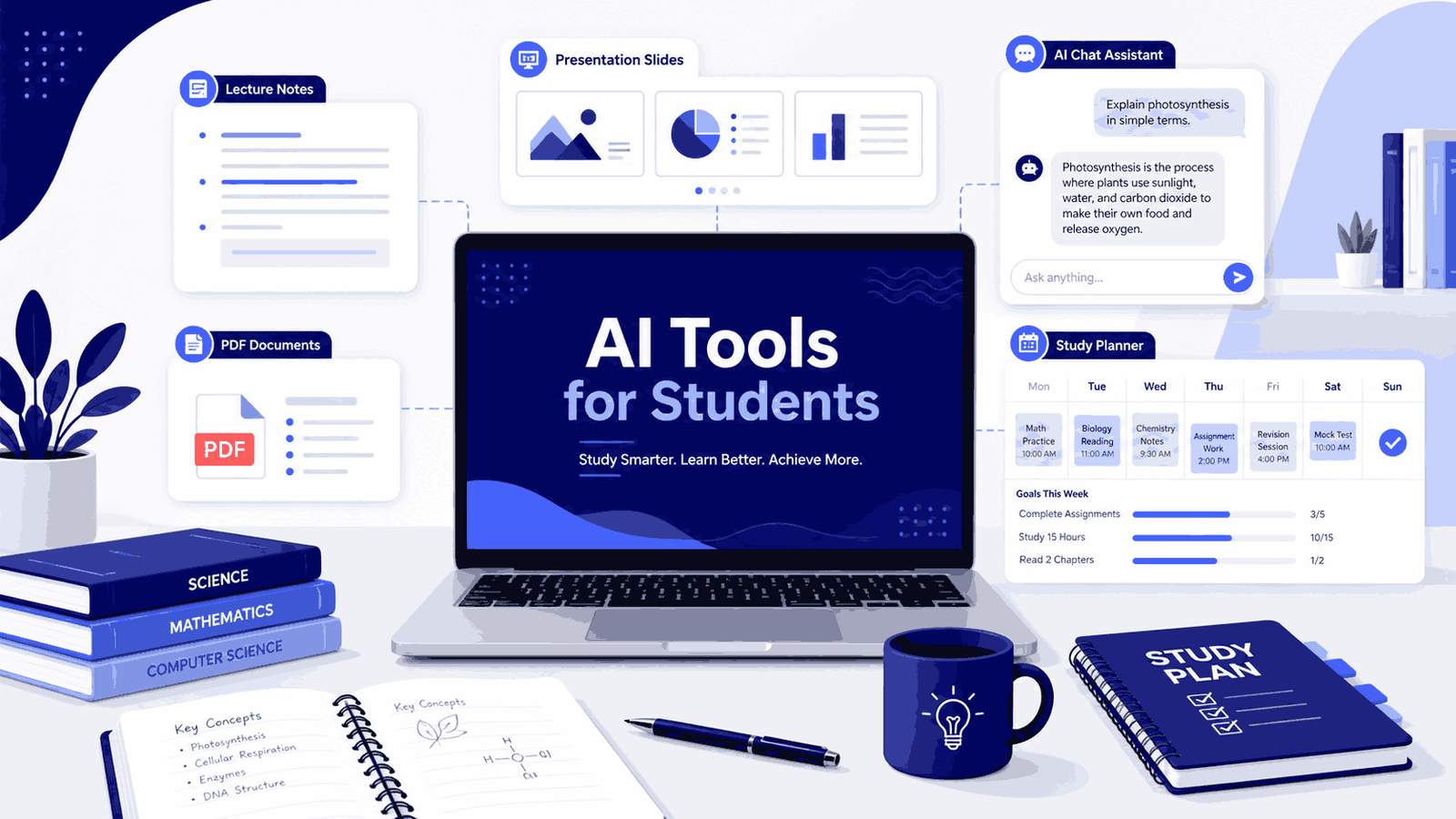
AI tools for students can help with lecture notes, PDFs, presentations, explanations, writing, and study organization, but the best tool depends on the problem you actually need to solve.
Quick Answer
If you are a student and want to use AI for studying, do not start by downloading ten different tools. Start with the problem you actually have.
If you record lectures when recording is allowed, Otter.ai is one of the most beginner-friendly tools for transcripts, summaries, and searchable notes.
If you study from PDFs, lecture slides, or long course readings, Google NotebookLM is probably the most immediately useful because it works from the material you already have.
If you need help building a presentation, Gamma can take a rough idea and give it structure.
If you are stuck on a difficult concept, ChatGPT or Claude can explain it differently, walk through an example, or generate practice questions.
If you already live inside Notion or Microsoft 365, then Notion AI or Microsoft Copilot may fit naturally into what you are already doing.
The point is simple: do not choose a tool because it is popular. Choose it because it solves a real problem you actually have.
Editorial Note
This guide is written for students and beginners. It is not sponsored. Tool features and free plan limits change often, so always check the official website before depending on any tool for important university work.
Who This Guide Is For
This is for university or college students who want to understand which AI tools are genuinely useful for studying, not the marketing version, but what they actually do when you sit down with a long lecture, a stack of PDFs, a presentation due in three days, and too many tabs open.
You do not need any AI experience to follow this. If you have never used one of these tools before, this is a reasonable place to start.
Introduction
Last semester I was sitting through a three-hour graduate seminar, trying to take notes, follow the discussion, and not fall behind all at once.
I missed things. I always missed things.
A classmate mentioned she was using Otter.ai to transcribe her lectures and review the summary afterward. That made me curious. I started testing how these tools actually fit into student life, not a productivity influencer’s optimized system, just a regular student trying to get through lectures, notes, PDFs, and deadlines.
What I found is that AI tools are genuinely useful in some situations and genuinely overrated in others.
They are not magic. Transcripts contain mistakes. Summaries miss context. Presentation tools can produce slides that look clean but still need real research behind them. Chatbots can explain things clearly, and sometimes they can be confidently wrong.
But used carefully, they can save time, reduce confusion, and help you study more actively.
This guide covers the tools I think are worth understanding in 2026, what each one is actually good for, and where to be careful.
What Can AI Tools Actually Help Students With?
Before comparing tools, it helps to know what the main use cases are.
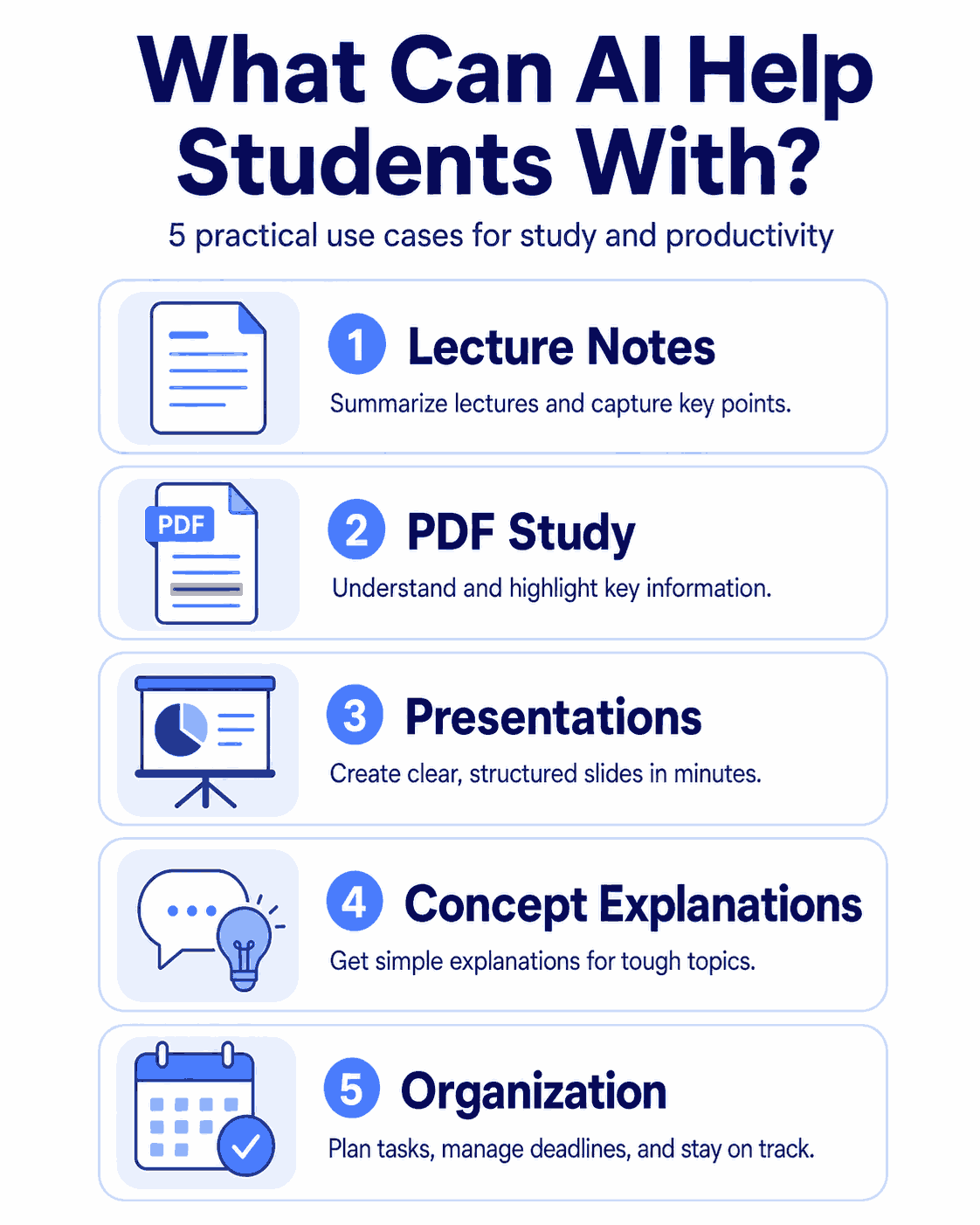
Lecture notes and transcription means the tool turns spoken audio into text. Useful when you miss details during class or want to search through a lecture later.
Summaries and study guides means the AI takes your slides, PDFs, notes, or transcripts and compresses them into shorter explanations, revision material, or quiz questions.
Q and A means you can ask questions about your material. “What did the professor mean by opportunity cost?” or “Explain this research paper in simpler terms.”
Presentations means the tool helps you turn a rough topic into a structured slide outline with headings and flow.
Organization means keeping class notes, deadlines, reading lists, and study plans in one place.
Not every tool does all of these. Some are built for live recordings. Some are better for PDFs. Some only make sense if you already use a specific system.
The mistake most beginners make is trying to use one tool for everything, or trying five tools at once and getting nowhere with any of them.
A better question to start with: what is the problem I am actually trying to solve?
Best AI Tools for Students in 2026
Here are the tools I would put in a practical beginner student toolkit. Where I have used something personally, I say so. Where I am drawing from research and official documentation, I keep the recommendation careful.
1. Otter.ai For Lecture Recording and Notes
Otter.ai is one of the most well-known AI transcription tools. It can record audio, create transcripts, summarize conversations, and make recordings searchable.
For students, the most useful case is lecture recording but only when recording is allowed. More on that below.
I use Otter.ai in classes where recording is permitted. The useful part is not just getting a transcript. The summary helps me quickly review what happened, and being able to search back through the recording when I need one specific explanation is genuinely helpful.
That said, I do not treat the transcript as a clean source. I treat it as a rough study aid.
What it helps with
- Recording lectures when you are allowed to
- Turning speech into text
- Summarizing recordings
- Searching inside transcripts later
- Reviewing missed details after class
- Asking questions about the lecture content
This is useful when your professor speaks quickly, the lecture runs long, or you understand the topic better by reading it again.
Where it is weak
Otter.ai makes mistakes when audio quality is poor, the speaker talks fast, multiple people speak at once, the lecture contains technical vocabulary, or the class is in a language the tool does not handle well.
Do not blindly trust the transcript. Review the important parts yourself.
Best for
Students who attend in-person or online lectures and want a simple tool for transcripts, summaries, and searchable notes.
2. Google NotebookLM For PDFs, Slides, and Study Guides
NotebookLM is a different kind of tool from Otter.ai. It is not mainly a live recorder. It is more useful once you already have study material.
You upload PDFs, lecture slides, research papers, notes, or transcripts. Then NotebookLM helps you study from them. This matters because a lot of university work is not just lectures it is long readings, dense slides, and exam revision across multiple sources.
What it helps with
- Summarizing long PDFs
- Understanding lecture slides
- Creating study guides and revision notes
- Generating quiz questions
- Asking questions about your uploaded material
- Finding connections between different sources
The strong part is that it works from what you give it, not from general internet knowledge. That makes it more reliable for studying than asking a chatbot open-ended questions without providing your actual course material.
Where it is weak
NotebookLM is only as good as what you upload. Messy notes, incomplete slides, or a poor transcript will produce weak output. It helps you understand your material, but it cannot replace actually reading it.
Even source-based AI can misread something. For exams and assignments, always verify with your lecture slides, textbooks, or course notes.
Best for
Students who study from PDFs, slides, notes, or research papers and want summaries, study guides, quizzes, and source-based answers.
3. Gamma For Student Presentations
Gamma is useful when you need to build a presentation and you are stuck before you even start.
Many students do not struggle mainly with design. They struggle with turning a topic into a sensible structure. Gamma helps with that early stage, giving rough ideas a flow, suggesting headings, and making the skeleton of a presentation visible so you can edit it into something real.
What it helps with
- Creating presentation drafts from rough ideas
- Building a clear slide structure
- Generating headings and section flow
- Getting unstuck at the outline stage
For example, if your topic is “AI in education,” Gamma can help you create a first structure. Then you add the research, fix what is wrong, and make the slides actually yours.
Where it is weak
Gamma does not replace your research. It can make a presentation look organized, but it cannot make your argument strong. You still need to check the facts, add citations where required, and make sure it matches your professor’s expectations.
Do not submit AI-generated slides without checking the facts, improving the argument, and making the presentation your own. It usually shows when slides are generated but not properly edited.
Best for
Students who need help turning a rough topic into a presentation outline and slide structure.
4. ChatGPT or Claude For Explaining Difficult Concepts
These are general AI assistants. For students, the best use case is not writing, it is understanding.
Sometimes a textbook explains something in a way that does not land. Sometimes a lecture moves too fast. Sometimes you understand the words but not the idea.
You can ask: “Explain this in simple terms.” “Give me an example.” “Explain this like I have never heard of it before.” “Turn this lecture note into a revision outline.” “Give me five practice questions on this topic.”
What they help with
- Explaining difficult topics in different ways
- Generating examples
- Creating practice questions
- Summarizing notes
- Building essay outlines
- Comparing two theories or approaches
- Brainstorming revision structure
They are useful when you feel genuinely stuck and need to hear something explained differently.
Where they are weak
The biggest problem is accuracy. Both tools can explain something clearly and still be wrong. Clear does not mean correct. They can miss context, simplify too much, or give an answer that sounds confident but does not fit your course.
Verify important facts with your lecture slides, textbooks, and course readings. And do not copy AI output directly into assignments. Use it to understand and practice, then write your own work.
Best for
Students who need simpler explanations, examples, summaries, practice questions, and study support.
5. Notion For Organizing Study Materials
Notion is not a transcription tool. It is an organization tool.
You can use it to create class pages, reading lists, assignment trackers, exam revision plans, and study dashboards. If you already have notes, transcripts, summaries, or study plans scattered across multiple places, Notion can give them a home.
What it helps with
- Organizing class notes
- Tracking assignments and deadlines
- Building reading lists
- Creating exam revision plans
- Keeping a study dashboard
- Managing research notes across projects
If you already use Notion, the AI features can help summarize, rewrite, or expand notes. But Notion is an organization layer, not a recording or transcription tool.
Where it is weak
Notion can become a project in itself. Some students spend more time designing dashboards than actually studying. A simple system you use beats a beautiful system you maintain.
Best for
Students who want to keep class notes, tasks, deadlines, and revision plans in one organized place.
6. Microsoft Copilot For Students Already Inside Microsoft 365
If your university gives you access to Microsoft 365, Copilot may already be available to you.
This is worth checking before you pay for anything else. Many students already use Word, PowerPoint, OneNote, Teams, or Outlook through their university account. If Copilot is included, it can summarize, organize, and help draft things inside the apps you are already using.
What it helps with
- Summarizing notes inside Microsoft apps
- Creating PowerPoint drafts
- Organizing ideas in OneNote
- Working with documents in Word
- Fitting into Microsoft 365 workflows
Where it is weak
Access depends entirely on your university account, subscription type, and region. Do not assume it is available. Check your university account first.
Best for
Students who already use Microsoft 365 and want AI support inside Word, PowerPoint, OneNote, or Teams.
7. Grammarly or QuillBot For Editing Your Own Writing
These are writing support tools, which is different from the other tools on this list.
They can help with grammar, sentence clarity, rewriting awkward phrases, and improving tone. They are useful when you want to clean up your own writing before submitting or publishing it.
What they help with
- Fixing grammar mistakes
- Improving sentence clarity
- Rewriting awkward phrasing
- Adjusting tone
- Making writing easier to read
Where they are weak
Do not let editing tools erase your own voice.
Also, be careful with paraphrasing features. Using them to disguise copied work is an academic integrity problem. Use them to improve your own writing, not to hide someone else’s.
Best for
Students who want help editing their own writing before submitting it.
Student AI Tool Comparison
(Note: This table focuses on student use cases, not exact pricing. AI tool plans change often, so always check the official website before relying on a tool for important university work.)
| Student Need | Useful Tool | What It Helps With | Watch Out For |
|---|---|---|---|
| Recording lectures | Otter.ai | Transcripts, summaries, searchable notes | Always check recording permission first |
| Studying PDFs and slides | Google NotebookLM | Study guides, summaries, quizzes, source-based answers | Works best with complete, clear source material |
| Making presentations | Gamma | Slide drafts, outlines, visual flow | Always edit the final slides yourself |
| Understanding difficult topics | ChatGPT or Claude | Explanations, examples, practice questions | Verify important facts before relying on them |
| Organizing study materials | Notion | Class pages, dashboards, deadlines, notes | Easy to over-design and under-use |
| Microsoft workflow | Microsoft Copilot | AI support inside Microsoft 365 apps | Access depends on your university account |
| Editing writing | Grammarly or QuillBot | Grammar, clarity, rewriting, tone | Do not use paraphrasing to hide copied work |
How to Choose the Right Tool
The goal is not to collect AI tools. The goal is to solve one student problem at a time.
Step 1: What is your main problem?
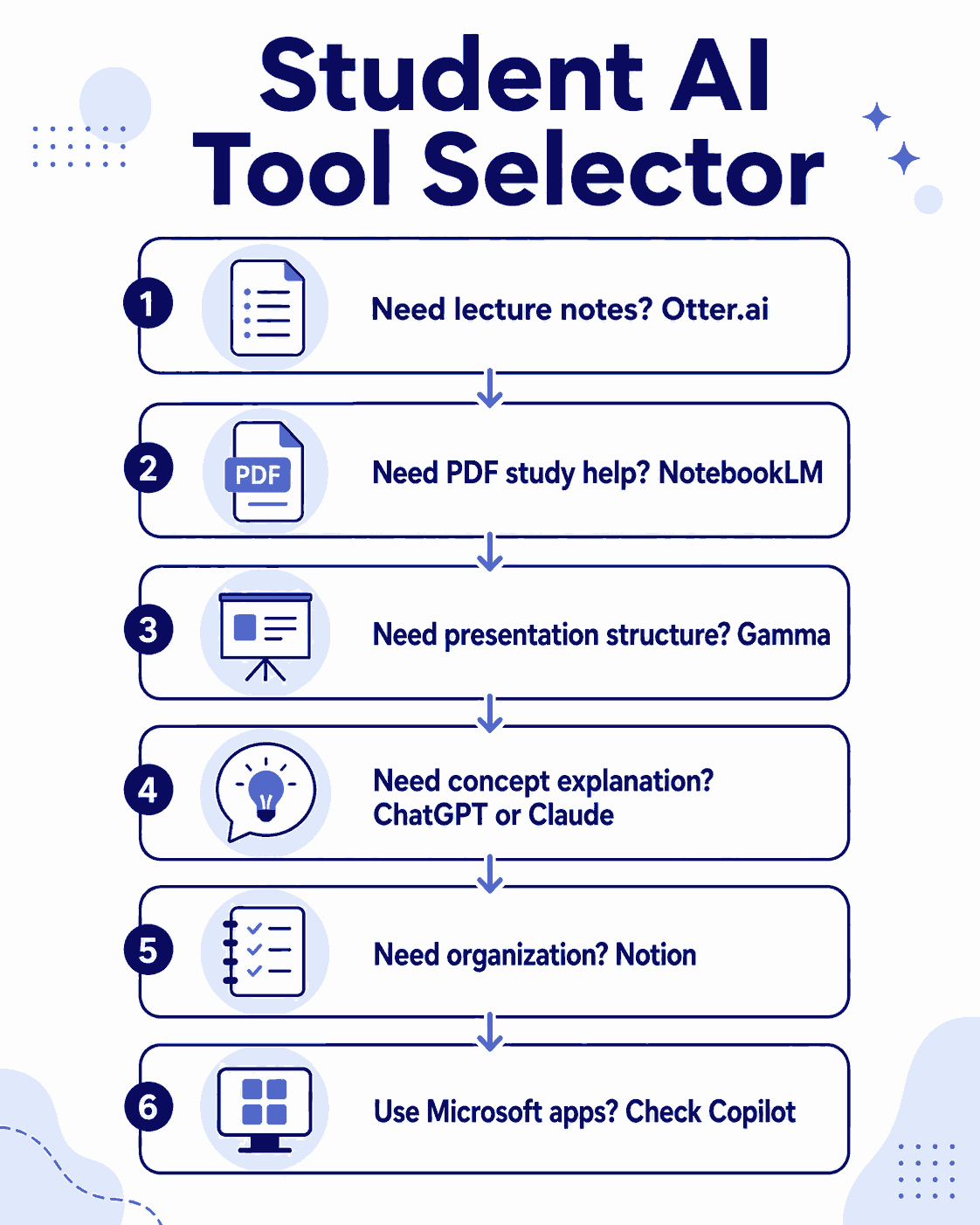
If your problem is keeping up in lectures, start with Otter.ai.
If your problem is studying PDFs or dense lecture slides, start with Google NotebookLM.
If your problem is presentations, try Gamma.
If your problem is understanding concepts that are not clicking, try ChatGPT or Claude.
If your problem is organization, scattered notes, missed deadlines, no system try Notion.
If your problem is working inside Word or PowerPoint, check Microsoft Copilot through your university account before paying for anything else.
Step 2: Where is your material?
If your material is audio, you need a transcription tool.
If your material is PDFs, slides, or transcripts, NotebookLM is likely more useful.
If your material is already inside Notion or Microsoft apps, lean into the AI features you may already have access to.
Step 3: Start free
Most students do not need to pay for multiple AI tools. Use a tool for real university work for two weeks. If it genuinely saves time and improves how you study, it may be worth a paid plan. If not, move on.
Step 4: Try one tool at a time
Testing five tools at once means you never properly learn any of them. Pick one real problem. Pick one tool. Test it on actual course material. Keep it only if it actually helps.
Common Mistakes Beginners Make
Trusting AI output without checking it
A transcript can mishear a word. A summary can skip an important point. A chatbot can explain something incorrectly. Always review what matters yourself.
Using AI as a replacement for studying
AI can support your learning. It cannot do the learning for you. If you only read AI summaries and never engage with the actual lecture, textbook, or practice questions, your understanding stays shallow.
Signing up for too many tools
Pick one. Use it properly. Then decide.
Ignoring recording rules
Whether an app can record is a different question from whether you are allowed to record. Always check with your professor before recording a class.
Copying AI output into assignments
AI summaries and explanations are study aids. They are not automatically your own work. Use AI to understand and practice, then write in your own words.
A Note on Legal and Academic Integrity
I want to be direct here because students sometimes cross a line without realizing it.
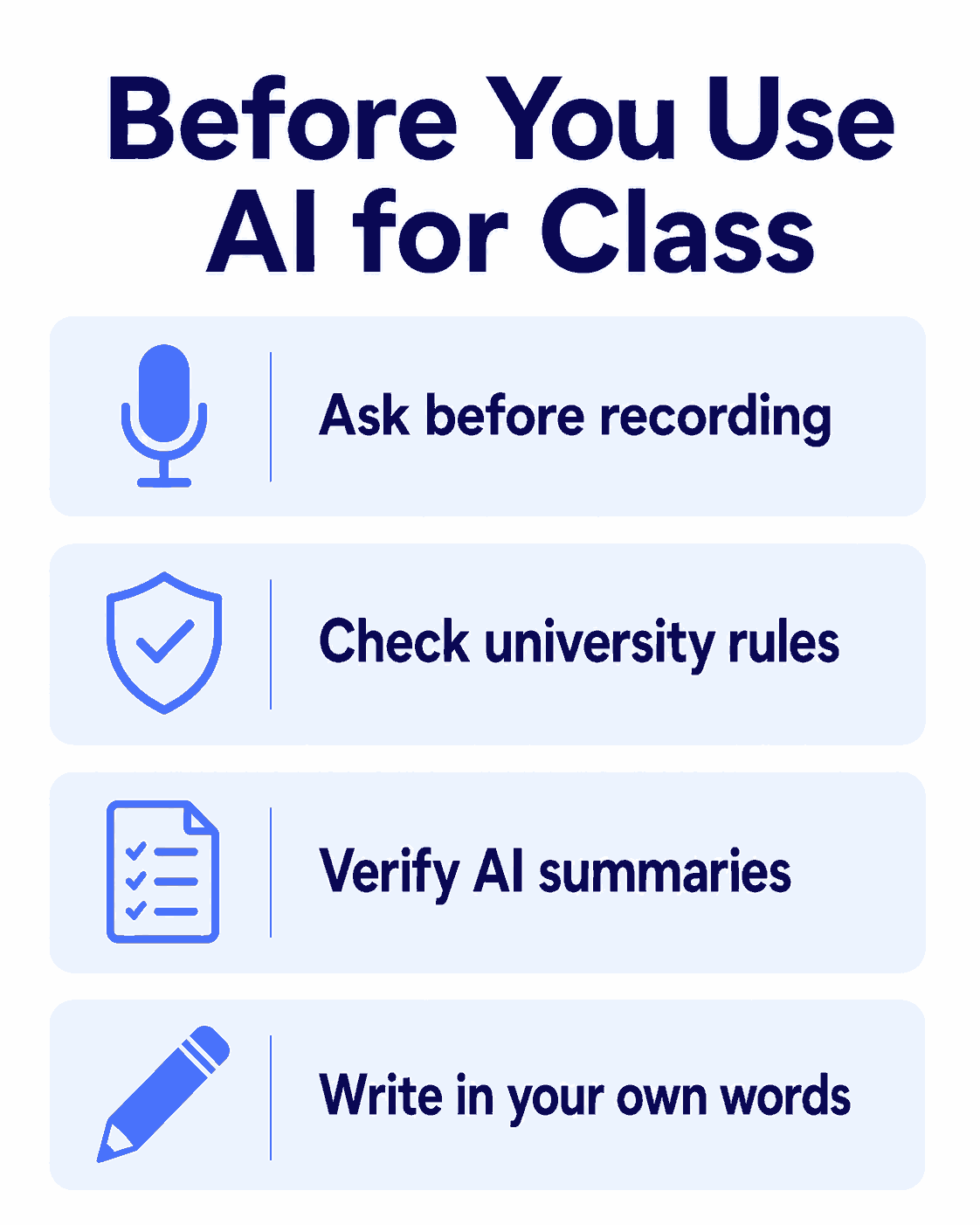
The fact that an app has a record button does not mean you are allowed to record. Your professor, university, or classmates may have rules about this. In some countries, recording spoken words without permission can create legal problems. If you are studying in Germany, this is worth taking seriously, Unauthorized recording of non-public conversations can carry legal risk.
The safest approach: ask your professor before recording. Something simple like “Would it be okay if I recorded the lecture for personal study notes?” is enough. Some professors allow it. Some do not. Respect either answer.
The same applies to academic integrity. AI-generated notes are rough study material. Do not copy them into assignments, do not submit AI-written work as your own, and always follow your university’s AI policy and your professor’s instructions. If you are unsure what is allowed, ask early. It is easier to ask beforehand than to explain afterward.
Beginner Verdict
If you are trying AI tools for the first time, do not start by asking “what is the best AI tool?”
Start with: what student problem am I trying to solve?
If you want lecture transcripts, try Otter.ai.
If you want to study PDFs and slides, try Google NotebookLM.
If you need a presentation draft, try Gamma.
If you need a difficult concept explained differently, try ChatGPT or Claude.
If you want to organize notes and deadlines, try Notion.
If your university already provides Microsoft 365, check whether Copilot is included before paying for anything.
My own experience: Otter.ai is useful for lectures when recording is allowed — mainly because being able to search and review later saves time. I still treat it as a rough aid, not a clean source. NotebookLM is the tool I turn to when working through dense PDFs or trying to study across multiple course materials. Gamma is useful when I am stuck at the structure stage of a presentation. ChatGPT and Claude are useful when a concept is not clicking and I need it explained a different way. Notion keeps everything organized.
None of them are perfect. All of them require judgment.
The best student AI workflow is not the one with the most tools. It is the one you actually use, understand, and can think critically about.
FAQ
Which AI tool is best for lecture notes?
Otter.ai is a strong starting point if you are allowed to record. It creates transcripts, summaries, and searchable notes from recordings. Always ask your professor before recording, and review the transcript yourself, becouse AI transcription makes mistakes.
Which AI tool is best for studying PDFs?
Google NotebookLM. You upload your course material and can ask questions about it, generate summaries, create study guides, or make revision questions. It works best when your source material is clear and complete.
Which AI tool is best for student presentations?
Gamma is useful for creating presentation drafts, outlines, and slide flow. It helps you get started when you do not know how to structure your slides. Always edit the final presentation yourself and add proper research.
Should students use free or paid AI tools?
Start free. Use a tool on real university work before paying for it. A paid plan only makes sense if the tool genuinely helps your study process. Features and limits change often, so check the official website before subscribing.
Is it cheating to use AI tools as a student?
Using AI as a study aid is usually different from having AI do your assignment for you. Using it for summaries, explanations, practice questions, or organization is generally more accepted. Submitting AI-generated text as your own work, or hiding AI use in ways that break your course rules, is where it becomes a problem. Always follow your university’s AI policy and your professor’s instructions.
Can I record lectures with AI tools?
Some tools can technically record lectures. Whether you are allowed to is a separate question. Always ask your professor before recording. Privacy rules vary by institution and country, and in many places unauthorized recording carries real consequences.
What is the best AI tool for organizing study materials?
Notion is useful for class pages, task lists, reading lists, and revision plans. If you already use Microsoft 365, OneNote with Copilot may also be worth checking, depending on your university account.
Related Guides
If you are new to NaqVentures, start here:
Start Here explains what NaqVentures is for and how students can use the site.
How I Automated My Daily Tasks as a Student shows how students can use automation tools for repetitive tasks.
Digital Marketing Skills Every Student Should Learn Before Graduation explains practical digital skills students can build alongside AI literacy.
Zapier vs Make for Beginners is useful if you want to understand how different apps can connect with each other.

Noman Ali is a student and beginner digital skills writer behind NaqVentures. He writes practical guides about AI tools, automation, SEO, blogging, and student productivity based on real learning, testing, and beginner-focused workflows.